
User Management Basics
Viewing, Finding, Removing and adding Users in your wellbeing Hub
User Management is a key part of your admin toolkit, giving you control over who’s in your Hub and keeping everything running smoothly. Ensuring the right people have access make it easy for your team to engage with wellbeing resources. This guide walks you through how to invite, view, sort, search, and remove users—so you can manage your team quickly and effortlessly.

A peek into On the Goga’s user management tool
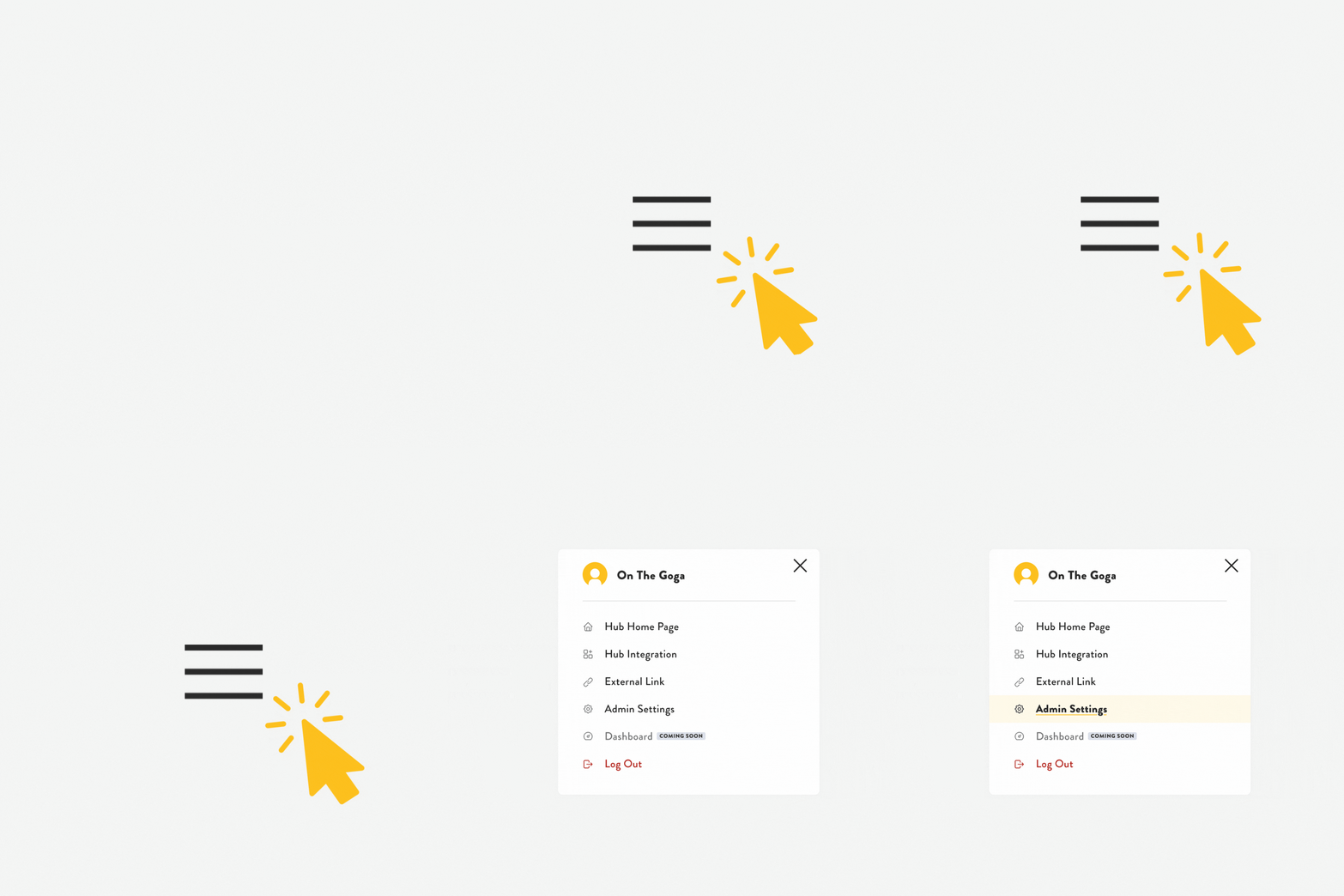
Navigate to the User Management page by going to Admin Settings, located in the top right menu of your Hub
1. Getting Started
Follow these steps to access User Management:
Log in to your On the Goga account here.
Open the Menu in the top-right corner of the Hub.
Select Admin Settings from the dropdown.
You’ll land on the User Management page.
The User Management page displays an organized list of everyone in your organization who has been invited to the Wellbeing Hub, including: Names, Email Addresses, Hub Join Dates, and Total Total Number of Users.
An example of an Admin searching for “Meagan” to find a user (Click to Zoom In!)
2. Sorting & Searching For Users
Need to find users quickly? Sort the list in just one click:
Sort by Name – Click the "Name" column to arrange users alphabetically.
Sort by Join Date – Click "User Since" to display users in order of account creation.
Looking for a specific team member? Use the search bar:
Navigate to the Search Bar at the top of the User Management page.
Enter the user’s name or email address.
Press Enter to see matching results.
3. Removing Users
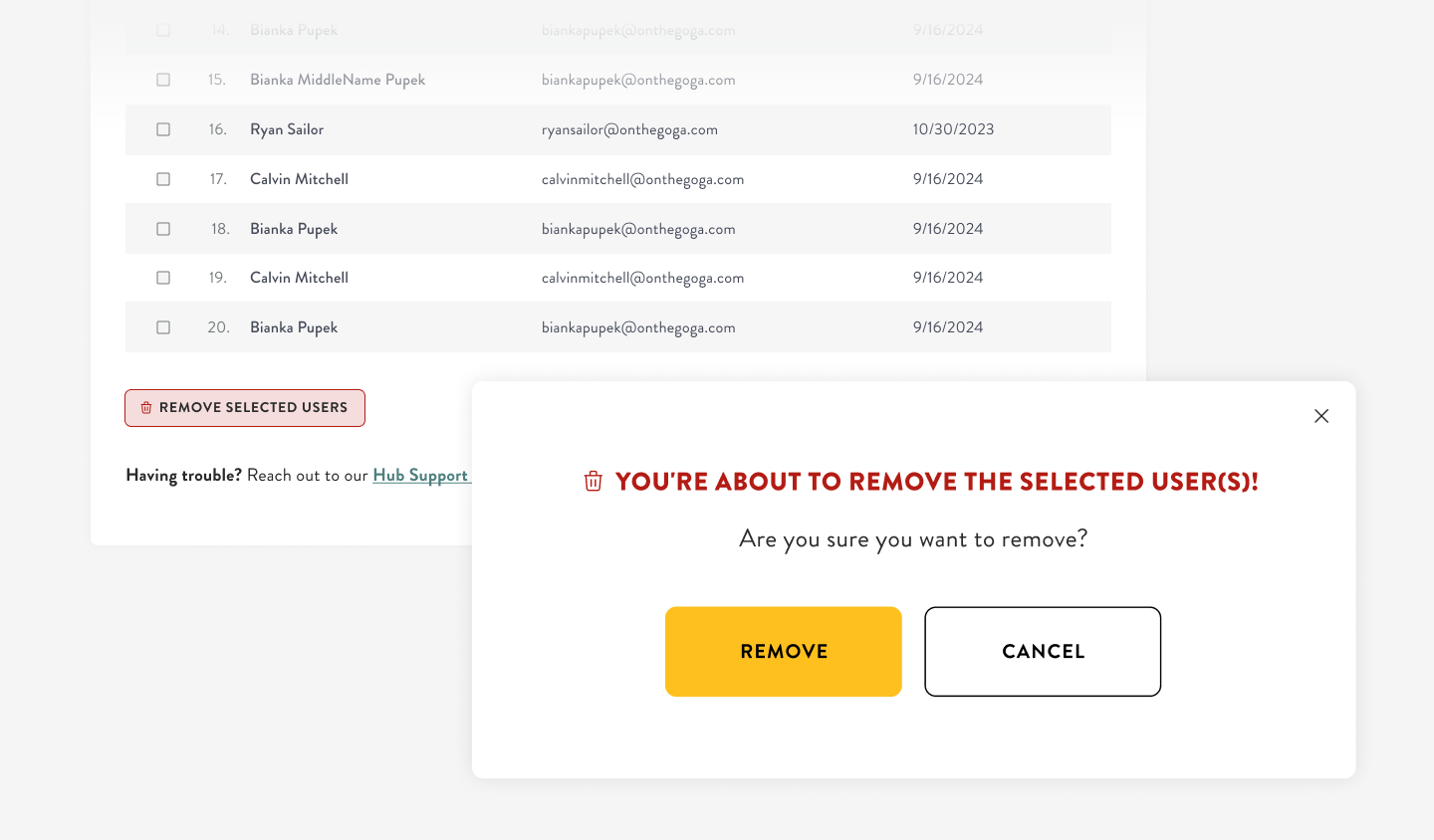
Click "Remove Selected Users" at the bottom left of your screen, and a confirmation pop-up will appear
Admins can remove users to manage Hub access efficiently. Removing a user immediately disables their access to the Hub.
To remove a user:
Check the box next to the user’s name.
Scroll to the bottom of the page.
Click "Remove Selected Users" in the bottom left.
Confirm by clicking "Remove" in the pop-up prompt.
When should you remove a user?
When an employee leaves the company
When an employee transitions from full-time to part-time
When an employee relocates to another territory
What happens if you accidentally remove a user?
No worries! Contact our Customer Success team via the Hub Support Form, and we’ll assist in restoring access.
4. Inviting New Users
To learn how to invite new users, read the article on our Easy Invite feature.
Need More Help?
For additional support, reach out to our Customer Success Team via the Hub Support Form or email us at clientexperience@onthegoga.com.