

Setting Up Single Sign-On (SSO) for Your On the Goga Hub
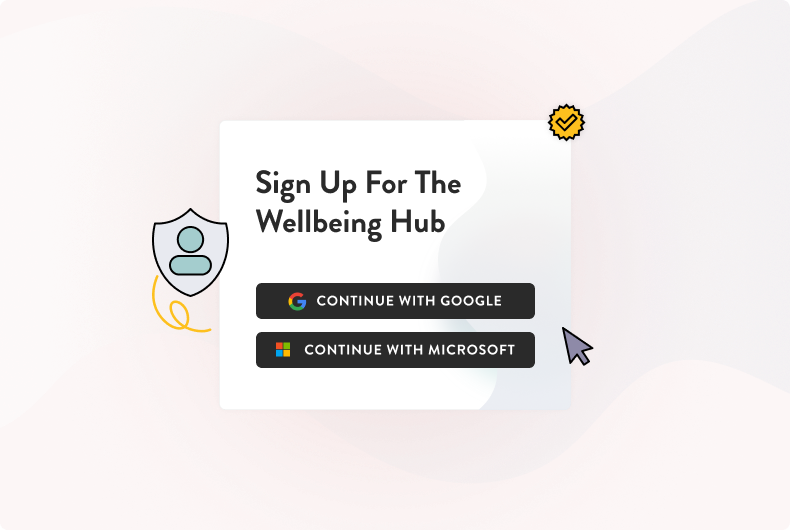
Welcome to your On the Goga Wellbeing Hub setup! 🎉
If your organization uses Google Workspace or Microsoft 365, you can enable Single Sign-On (SSO) so your team can log in quickly and securely—no separate Hub passwords needed.
This guide walks you through everything you need to know to set up and manage SSO for your company’s Wellbeing Hub.
What Is Single Sign-On (SSO)?
SSO lets users access the On the Goga Hub using their existing work email credentials—either through Google or Microsoft. This simplifies the login experience, reduces password fatigue, and keeps access secure and centralized.
In short:
Employees sign in with their company Google or Microsoft email.
Admins manage permissions through their existing systems.
Everyone saves time, and security gets a major upgrade.
Google SSO Setup
Who Can Use Google SSO
Any organization that uses Google Workspace (or standard Gmail accounts) can enable SSO for their Hub.
How It Works
Users can log in or sign up to the Hub with a single click using their Google account—no extra passwords required.
Steps to Log In with Google
Go to your Hub login page.
Click “Log in with Google.”
Choose the Google account linked to your company’s domain.
If it’s your first time, you’ll be prompted to grant On the Goga access to your basic profile info.
You’ll be redirected back to your Hub dashboard—no password typing needed.
Steps to Sign Up with Google
On the sign-up page, click “Sign up with Google.”
Choose your Google account.
Confirm your name and agree to the Terms & Conditions.
You’ll be automatically added to your company’s Hub environment.
Notes for Admins
You don’t need to manually invite users—once your company’s domain is authorized, users can self-register.
Companies not using Google Workspace can request SSO access through a preferred provider if needed.
Microsoft SSO Setup
Why Enable Microsoft SSO
Microsoft SSO streamlines access for organizations using Microsoft 365 or Outlook domains. It allows team members to use their existing credentials while keeping authentication managed through Microsoft Entra ID (formerly Azure AD).
Who Can Use It
All current and new Hub users with Microsoft-linked emails (including @outlook.com or connected accounts).
Both admins and standard users will see the option to log in or sign up using Microsoft.
Logging In with Microsoft
Go to your Hub login page.
Click “Log in with Microsoft.”
Select your Microsoft account.
The first time you log in, you’ll be asked to grant On the Goga access to your basic profile information.
You’ll be redirected to your dashboard—no password required.
💡 After the first time, users can simply click “Log in with Microsoft” for a one-click login experience.
Signing Up with Microsoft
Click “Sign up with Microsoft.”
Select your Microsoft account.
Review and confirm your pre-filled profile information.
Agree to the Terms & Conditions and complete sign-up.
You’ll be redirected to your Hub dashboard.
If a User’s Email Isn’t Microsoft-Linked
If someone tries to sign in with Microsoft SSO but their Hub account uses a non-Microsoft email, they’ll see an error message prompting them to log in using their standard email and password instead.
They can also reset their password if needed.
Advanced Setup: Microsoft Entra (Azure AD) Configuration
If your organization uses Microsoft 365 with centralized IT administration, you’ll need to grant tenant-wide consent for On the Goga’s application in Microsoft Entra (Azure AD). This ensures all users in your domain can access the Hub without seeing an “Admin approval required” error.
Steps for IT Administrators
1. Approve the application for your tenant
Go to:
https://login.microsoftonline.com/common/adminconsent?client_id=47d65bc4-1a3a-49a0-ac0f-3a12741a1594Sign in as a Global Administrator for your Microsoft 365 tenant.
Review the consent screen listing requested permissions for “On the Goga Hub.”
Click Accept to grant tenant-wide admin consent.
This authorizes the app for all users and removes the “Need admin approval” login block.
2. Verify the app in your tenant
Open Azure Portal.
Go to Microsoft Entra ID → Enterprise applications.
Search for “On the Goga” and confirm:
Status: Enabled for users to sign in.
User assignment required?: No (unless you plan to restrict access to specific groups).
3. (Optional) Assign specific users or groups
In Enterprise applications → Users and groups, add those who should access
hub.onthegoga.comif you’re limiting permissions by policy.
4. Test the connection
Visit https://hub.onthegoga.com.
Click “Sign in with Microsoft.”
You should now be redirected to your Microsoft login page and sign in without any admin approval prompts.
Troubleshooting & Tips
💡 Users can’t log in with SSO?
Confirm they’re using an email address linked to your organization’s Google or Microsoft domain.
Double-check that the correct SSO provider was used (Google vs. Microsoft).
⚙️ Admin approval required (Microsoft only)?
Ensure your IT admin has granted tenant-wide consent via the Admin Consent URL.
🔄 Changed company domains or email formats recently?
Update your user records in the Hub or reauthorize SSO with the new domain.
📬 Need help?
Reach out to your On the Goga Customer Success Manager or email support@onthegoga.com for assistance.
